

How to Sync LinkedIn Messages to Salesforce
Log LinkedIn conversations as Salesforce activities. Why native writeback falls short (Advanced Plus, InMail-only), what the activity gap costs you in forecasting, and how to sync every DM automatically against the right record.
Here’s what a sales rep's average day should look like: prospecting, connecting, and DMing. Rinse and repeat.
Here’s what it actually looks like: prospecting and connecting, typing info into your CRM, DMing and emailing, typing more info into your CRM, and so on.
For most sales reps, especially those who prospect heavily on LinkedIn, most of that work doesn’t actually make it into your CRM without manual effort. If you ask us, time spent on anything other than filling your pipeline is time wasted.
If you’re looking to easily sync LinkedIn messages directly into your CRM, you’re in the right place. Below, we’ll show you how to sync LinkedIn messages to Salesforce with Hublead, the best Chrome extension for integrating LinkedIn with Salesforce.
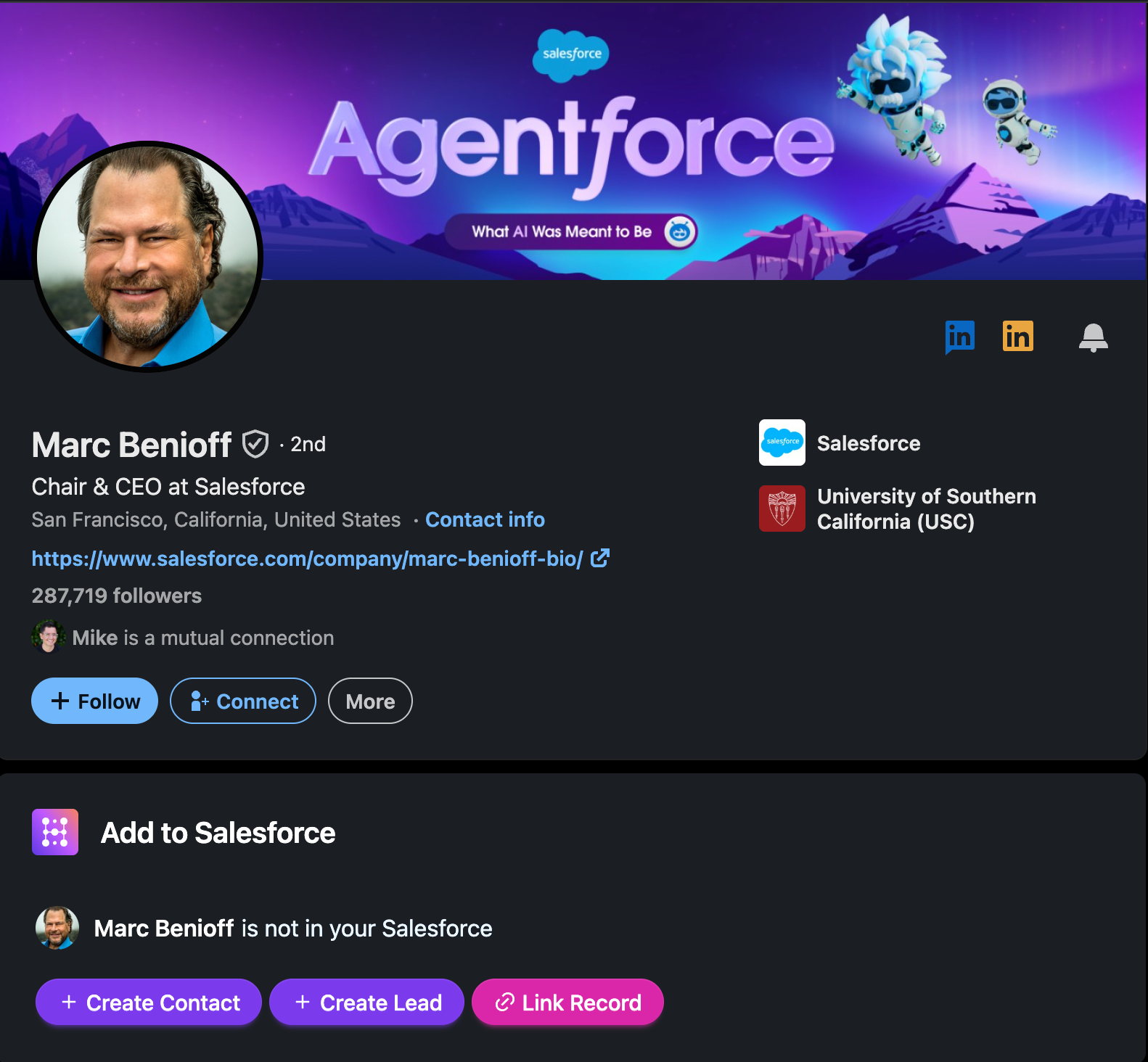
Why sync LinkedIn messages to Salesforce?
Salesforce is a fantastic CRM, but any CRM is only as good as the data inside it.
Salesforce logs emails and calls by default, but LinkedIn messages are missing from your logged prospecting activities. That means limited pipeline visibility for your manager and an incomplete activity record for the sales rep.
This is not just tidy record-keeping. The missing activities can have a downstream impact on the rest of your team:
- Pipeline reviews and forecasting lean on recent activity. A deal with no logged touch for weeks gets discounted or pushed, even when the rep traded ten LinkedIn messages with the buyer yesterday.
- A manager cannot coach a conversation they cannot see. The most important objection handling of the quarter could be sitting in a DM thread no one in leadership can read.
- When a deal moves from SDR to AE, or a rep leaves, the LinkedIn history walks out with them. The next person opens a Contact with no context and has to restart the relationship.
Syncing messages, on the other hand, saves time, gives you and your team better data, and makes handoffs easier.
Okay, you're sold. Next, I'll share the best tools to sync your LinkedIn DMs and InMails.
The Best Tools to Sync LinkedIn Messages to Salesforce
When it comes to syncing your LinkedIn messages to Salesforce, you have three different options:
- Salesforce native integrations
- A custom build
- A Chrome extension like Hublead.
Here's how they compare:
Which is the best solution?
If you have LinkedIn Sales Navigator Advanced Plus, then you have your pick of all three, but even then, Hublead may be the best option. Are we biased? A bit. But having worked with 8000+ sales teams that regularly save 8+ hours every week, we think it’s fair to say that Hublead can be a massive time-saver for your sales team.
Is it safe to sync LinkedIn messages to Salesforce?
It is. LinkedIn tends to frown on automation tools that abuse its platform through automated connection requests and DMs, but syncing LinkedIn DMs and InMails to Salesforce carries less risk.
Already, 8,000+ active users are syncing LinkedIn to their CRMs through Hublead today. Hublead is GDPR- and CCPA-compliant, and we can provide a full Data Processing Agreement (DPA) on request if your legal or security team needs one before rolling it out.
In short, Hublead is safe to use and compliant with privacy regulations.

Ready to fix your outbound process?
How to import LinkedIn messages to Salesforce with Hublead
Syncing DMs and InMails from LinkedIn to Salesforce is easy with Hublead; just follow these steps:
- Download the Hublead Chrome extension
- Connect Hublead to your Salesforce account
- Sync your messages from LinkedIn
Download the Hublead Chrome extension
First, install the Hublead Chrome extension and connect it to your LinkedIn and Salesforce accounts.
Head to the Chrome Web Store and download the Hublead extension.
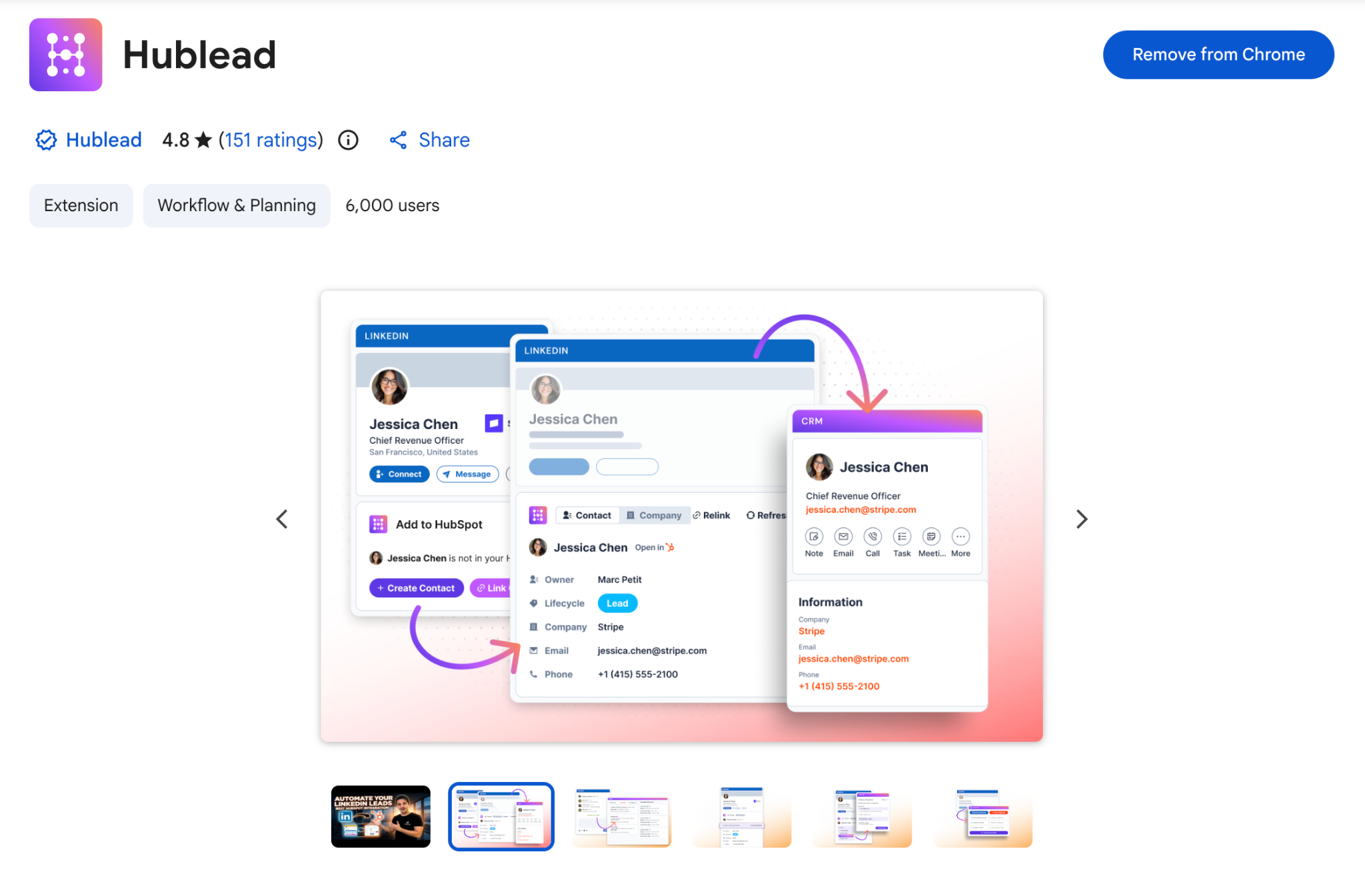
Connect Hublead to your Salesforce account
Once installed, open LinkedIn, and you will see a new option to connect Hublead to your Salesforce account.
If Hublead is not installed in your Salesforce org, you will need to have an admin add it before you can connect Hublead to your Salesforce account from the authentication window.
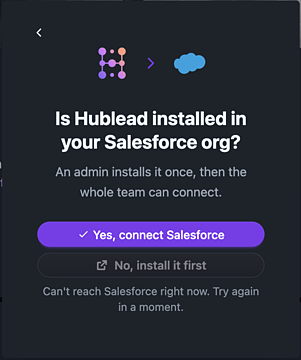
Once Hublead has been added to Salesforce, click the button to authenticate the connection by logging in to Salesforce. And that’s it! In just a few minutes, you’ve set up Hublead and can save 2+ hours this week by not copying and pasting anything from LinkedIn into Salesforce.
Enable message sync and sync messages and InMails
Every Hublead tier, from Pro to Enterprise, lets you sync messages to Salesforce. Pro lets you sync with one click, while “Business” syncs as you read them; beyond that, every message syncs automatically.
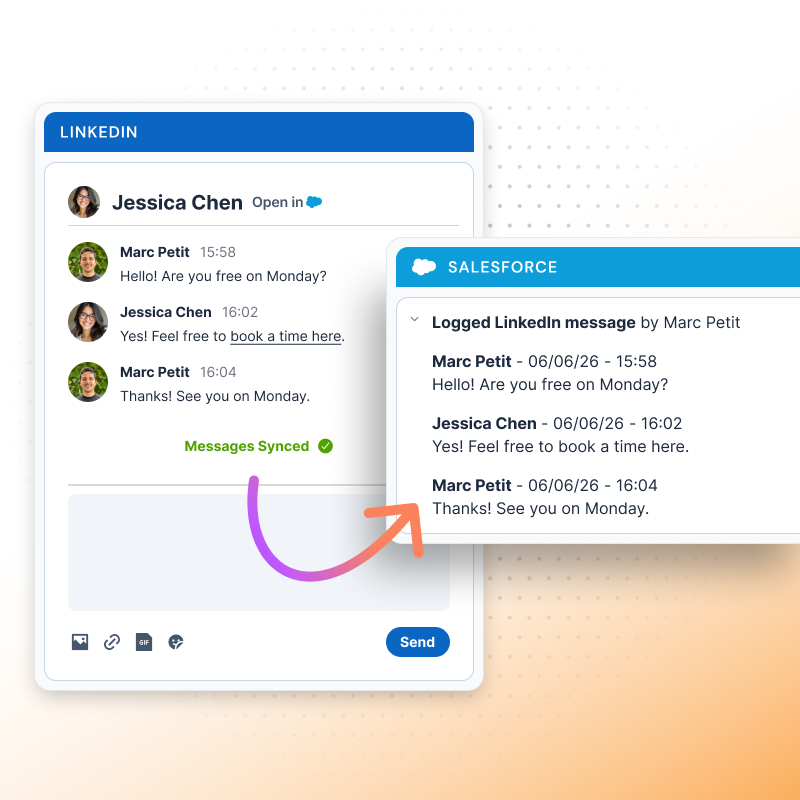
If a contact doesn’t exist in Salesforce, you’ll see a prompt to add them as a contact or lead. Hublead will then import the entire conversation history, not just messages going forward. That said, only the last 20-30 messages of each conversation are logged. They’ll be saved as one Salesforce activity per day, with messages sent on the same day bundled into the existing activity rather than creating a new one.
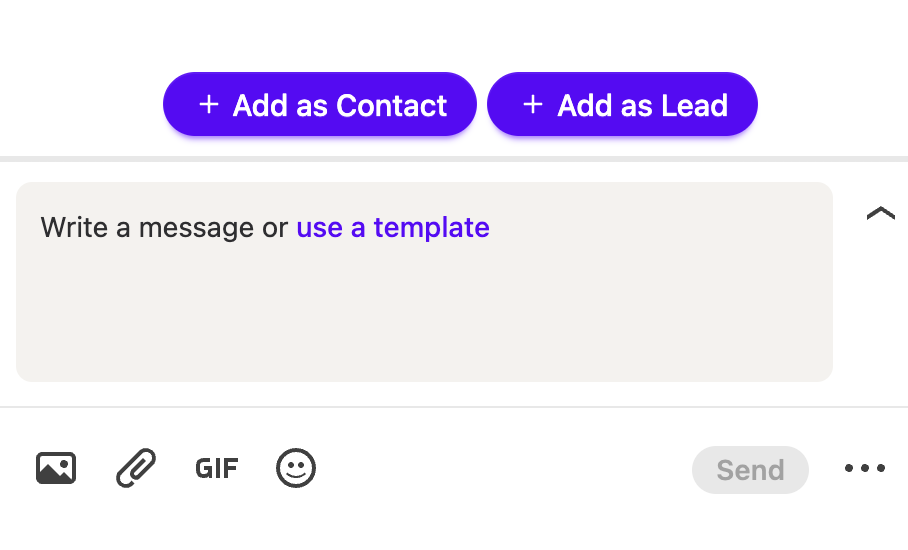
And then you can sync messages straight to the contact timeline:
Sync DMs, import leads, and more: See what else Hublead can do
By syncing messages alone, Hublead can already cut hours of busywork from your week. But syncing DMs and InMails aren’t the only things Hublead can do. Here’s why sales teams trust Hublead to sync their data and move faster than ever.
Import and enrich leads with one click
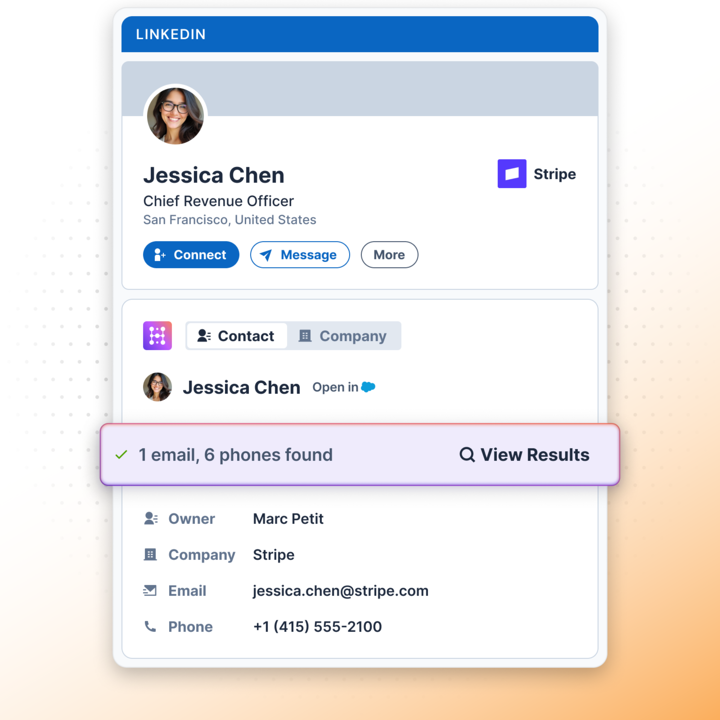
Hublead does more than sync LinkedIn messages: you can import LinkedIn profiles directly into Salesforce as well. With Hublead's data enrichment capabilities, you can also find email addresses and phone numbers, giving your CRM up-to-date data for every prospect.
Edit Salesforce data in LinkedIn
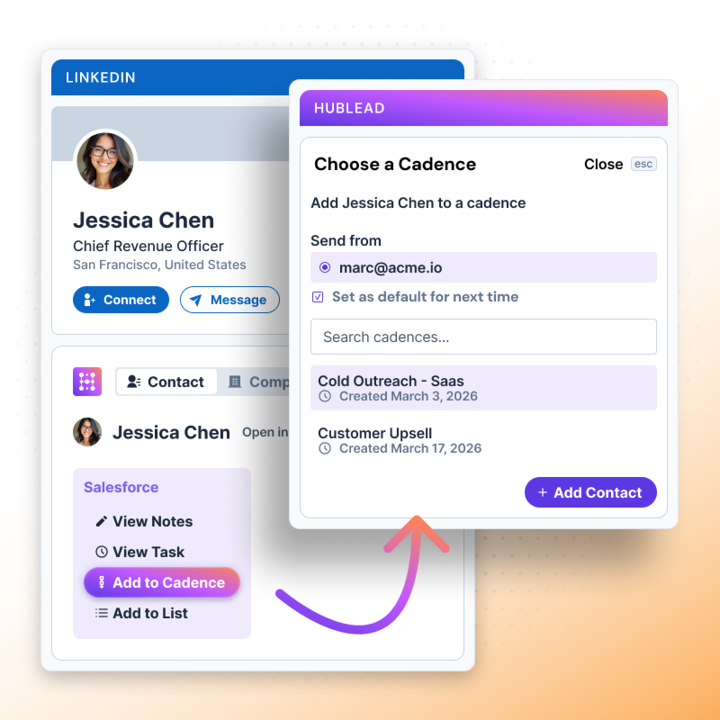
Hublead doesn’t just sync LinkedIn to Salesforce; it also syncs Salesforce data to your prospect’s LinkedIn profile. You can edit contact properties, create notes and tasks in Salesforce, and even enroll a lead in a Salesforce cadence without leaving your prospect’s profile. It’s like having your CRM built directly into LinkedIn!
Bulk enrich a list of leads
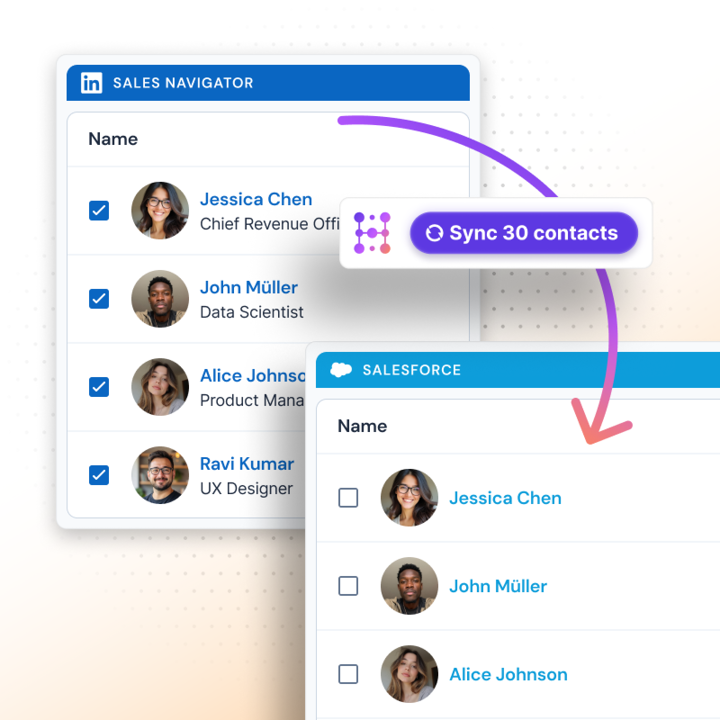
You can enrich leads one by one if you want, but you can save even more time by enriching an entire list of leads in the Hublead web app. Prospect on LinkedIn, import leads, save them to your list, then enrich every lead with the click of a button.
And the best part is Hublead does this for every tier of LinkedIn and Sales Navigator. No extra subscriptions needed or gated access. Just add Hublead to Chrome, and you are all set to sync.
Best practices for logging LinkedIn messages
You are minutes away from syncing every conversation with a prospect straight to your CRM. Here are a few quick best practices to bear in mind first:
- Match to the right record first. Confirm the conversation is tied to the correct Contact or Lead, especially for common names, so activity history stays trustworthy. Clean matching also helps you avoid duplicate records.
- Log against the Opportunity context. When a Contact is tied to an open Opportunity, the logged messages give the deal a live activity trail that forecasting and pipeline inspection can actually read.
- Keep it current. A conversation logged in near real time is worth more than a bulk dump at quarter-end, because the value is in the manager seeing the deal is alive this week.
- Standardize across the team. If only half the reps log LinkedIn messages, the activity data is uneven, and managers cannot trust it. Make message sync the default for everyone who sells on LinkedIn.
How to report on LinkedIn activity in Salesforce
Logging messages is great, but sales managers want to know more than that their reps are reaching out to prospects. They want to show what’s working and refine their sales processes as they go.
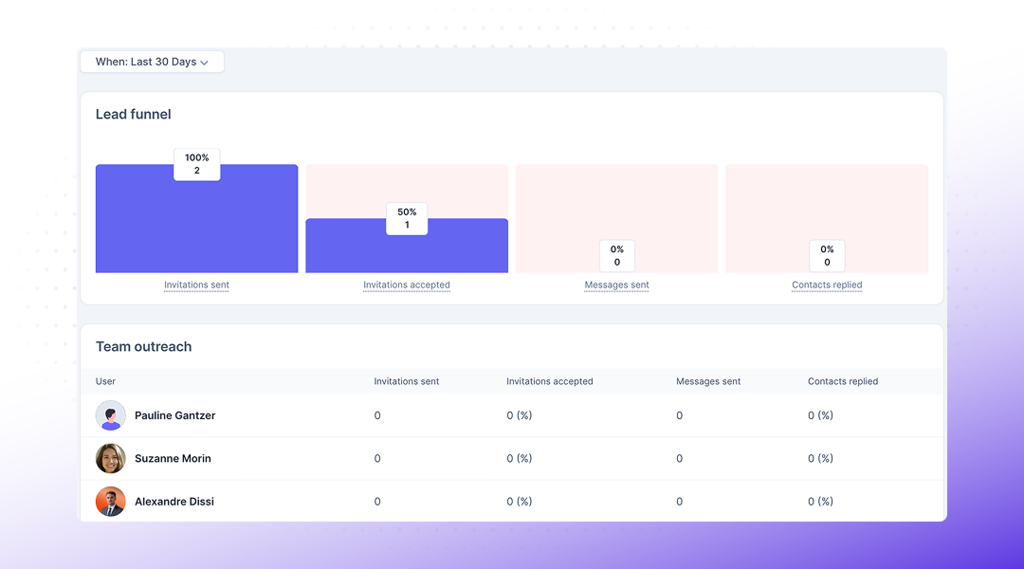
Hublead offers native reporting in its web app that gives you a high-level overview of activity by rep, including connections sent, accepted, and messages sent. For finer-grained reporting, Hublead’s data capture and Salesforce’s native reporting capabilities can help. Hublead syncs messages, contacts, and connection requests back to Salesforce, allowing you to build the following reports:
- Activity by rep. Report on logged LinkedIn touches per rep over a period, so coaching is based on what reps actually did on the channel, not on a guess.
- Deals with recent LinkedIn activity. Filter open Opportunities by last LinkedIn touch, so pipeline reviews surface deals that are alive on LinkedIn even when email has gone quiet.
- Channel mix on closed-won. Compare how often LinkedIn activity appears on deals that close versus deals that slip, and you start to see how much the channel is really worth.
None of those reports are possible while the conversation sits in LinkedIn. If those reps are also running ads, tie it together with the LinkedIn Ads and Salesforce integration so paid and organic LinkedIn show up in one place.
Need to sync messages from LinkedIn to Salesforce? Try Hublead for free
Your CRM is only as effective as the data inside it.
The problem is that a sales rep’s job is to prospect, not manage their CRM. If you don’t sync your activities back to your CRM, though, you won’t get credit for all your hard work, and your team won’t have full visibility into LinkedIn as an outbound channel.
If you’re spending hours every week manually entering data into your CRM, it’s time to try Hublead. Hublead imports leads from LinkedIn to Salesforce, deduplicates them if records already exist, and syncs DMs and InMails straight to the contact record.
Hublead does the hard work, so you can focus on prospecting. Try Hublead for free, no credit card required.
Ready to fix your outbound process?
Frequently asked questions
Where do synced LinkedIn messages appear in Salesforce?
As activities on the matched Contact or Lead, in the same activity timeline as emails and calls. Anyone opening that record sees the LinkedIn conversation history in context, including managers prepping a forecast and AEs taking a handoff.
What if I message someone on LinkedIn Free and Sales Navigator?
Hublead syncs them both! Unlike the native Salesforce to LinkedIn integration, Hublead works for both LinkedIn Free and Sales Navigator. Whether you send DMs or InMails, Hublead syncs everything to Salesforce.
Why does logging LinkedIn messages matter for forecasting?
Salesforce reads deal health from recent activity. If LinkedIn conversations never log, a live deal looks stalled and gets discounted in pipeline reviews. Logging the messages keeps the forecast honest and the deal visible.
Do I need Sales Navigator to log LinkedIn messages?
No, Hublead works on a free LinkedIn account. Sales Navigator only matters if you rely on its native, InMail-centric writeback on the Advanced Plus tier.